

젠킨스를 처음 설치하면 아래와 같은 경고가 나온다.

첫번째 경고는 health metrics에 설정된 임계값 이하로 떨어졌기 때문에 Agent를 오프라인 상태로 전환했다는 뜻이며,
두번째 경고는 built-in-node(controller 서버에서 실행하는 노드)를 수행하면 보안상 위험이 있다는 경고이다.
이전 글에서 말한 것 처럼 controller node 외에 agent node를 따로 쓰는데 그 이유는 아래와 같다.
- 보안상 위험. 만약 빌드하려는 코드에 악성코드가 있다면 controller에 영향을 미쳐서 전체 jenkins 시스템이 문제가 생길 수 있다. Agent 서버에서 빌드할 때 오류가 발생하면 Agent서버만 문제가 생긴다.
- 빌드 작업 분산을 통해 Controller 서버의 컴퓨팅 작업을 분산시킬 수 있다.
- 빌드 환경을 분리하여 프로젝트마다 필요한 환경을 구분도록 Agnet Node를 구축할 수 있다.
- 확장성. Agent Node를 추가하여 간편하게 컴퓨팅 자원을 늘릴 수 있다.
- 비용 효율 : Cloud Agent를 통해 필요할 때 Node를 자동 확장할 수도 있으면 빌드할 때 인스턴스를 만들고 끝나면 삭제하는 등 비용을 최적화할 수 있다.
참고자료 : Using Jenkins agents
Creating Jenkins Agents
0. Set hostname, hosts
# Jenkins Agent Server에서
hostnamectl set-hostname agent1.${custom}.local
cat <<EOF>> /etc/hosts
10.0.1.10 web.${custom}.local web # web
10.0.2.110 gitlab.${custom}.local gitlab # gitlab
10.0.2.120 jenkins.${custom}.local jenkins # jenkins
10.0.2.121 agent1.${custom}.local agent1 # agent1
10.0.2.130 harbor.${custom}.local harbor # harbor
EOF
1. Installing Java
rpm --import https://yum.corretto.aws/corretto.key
curl -L -o /etc/yum.repos.d/corretto.repo https://yum.corretto.aws/corretto.repo
yum install -y java-21-amazon-corretto
java --version
Jenkins Agent는 Controller와 통신할 때 agent.jar 파일을 사용한다. 즉 Agent도 Java가 설치되어 있어야하므로 설치해준다.
2. create jenkins user & jenkins directory
sudo useradd -m -s /bin/bash jenkins
sudo mkdir -p /home/jenkins/.ssh
sudo cp /home/ec2-user/.ssh/authorized_keys /home/jenkins/.ssh/authorized_keys

sudo chown -R jenkins:jenkins /home/jenkins/.ssh
sudo chmod 700 /home/jenkins/.ssh
sudo chmod 600 /home/jenkins/.ssh/authorized_keys
Controller가 Agent에 접근할 때 jenkins user로 접근하도록 설정할 것이다.
이를 위해 user와 /home/jenkins 를 생성하고, ssh 키 설정을 해준다.
난 편의를 위해 ec2-user와 같은 key를 통해 접근 가능하도록 설정하였다.
3. Installing Docker
sudo yum install -y docker
sudo service docker start
sudo usermod -a -G docker jenkins
yum을 활용하여 docker 설치 후 시작하였다. 또한 jenkins user가 docker를 실행할 수 있도록 권한을 설정해주었다.
Configuring Jenkins Agents
1. New Agent Node

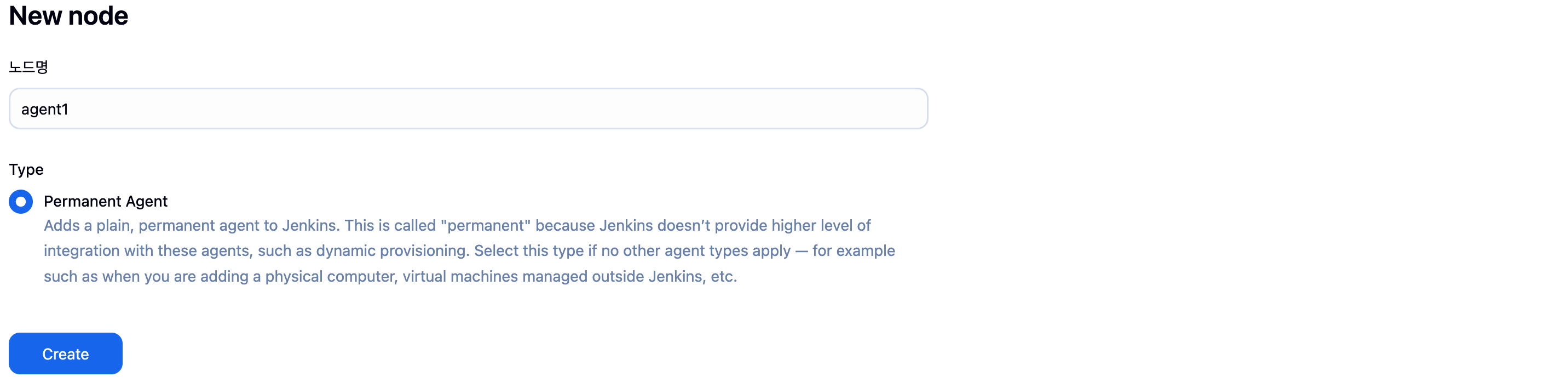
2. Number of executors
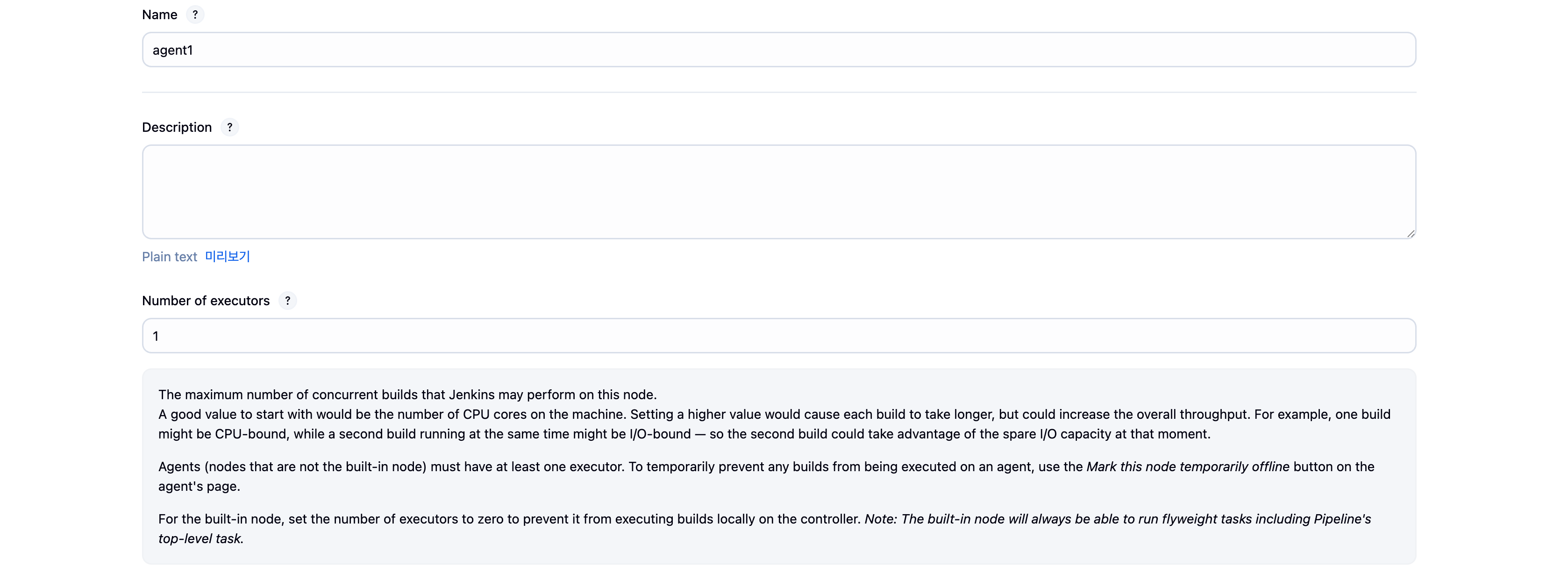
도움말을 읽어보면 Executor는 Agent Node에서 동시에 실행 가능한 빌드 수를 의미한다.
권장 값은 Machine의 CPU 코어 수 만큼 설정하는 것이라고 나와있다.
난 Agent Node를 t2.micro로 만들었기 때문에 1로 설정하였다.
3. Remote root directory
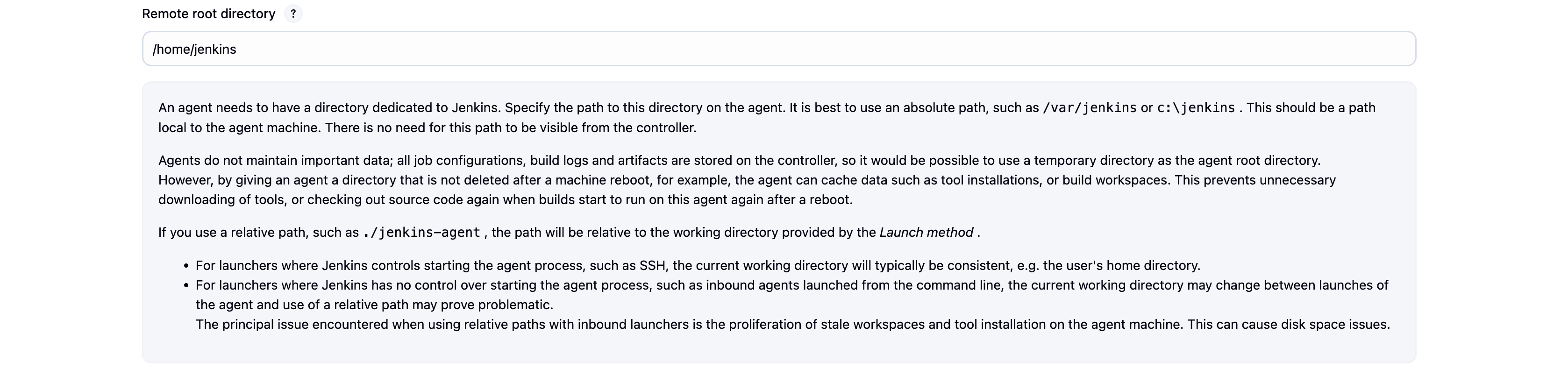
이는 Agent Node에서 전용 디렉토리를 지정하는 것이다. 절대경로로 지정하는 것이 권장된다.
보안상 /var/jenkins처럼 root권한을 필요로 하는 곳이 아닌 jenkins user를 만든 후 /home/jenkins 경로를 지정해주었다.
이 후 jenkins user에게 sudo 권한을 제한적으로 주는 방식이 가장 보안상 좋지만 얼만큼 트러블슈팅이 발생할지는 두렵다.
4. Labels

Labels는 이후 Jenkins 파이프라인에서 Agnet를 선택할 때 사용되는 태그이다. 난 k8s 환경에서 CI/CD를 구축할 계획이기 때문에 Docker Agent를 만들 것이기 때문에 label을 docker로 선택하였다.
5. Usage
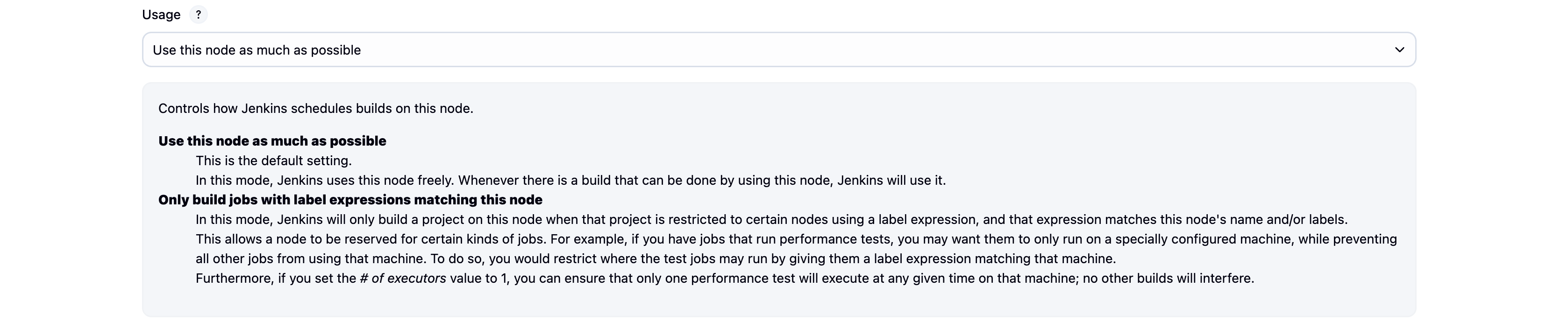
Agent에 대한 빌드 스케쥴링 방식 설정이다.
Use this node as much as possible : 기본 설정값으로 controller가 자유롭게 사용할 수 있다.
Only build jobs label expressions matching this node : 위에서 설정한 Label과 같은 label을 설정한 경우에만 해당 Agnet를 빌드할 수 있다.
나의 경우는 비용의 문제로 하나의 Agent만 구축할 것이기 때문에 자유롭게 사용하도록 설정하였다.
6. Launch method

Launch agent connecting it to the controller : Agent가 Controller에게 접속하는 방식이다. 즉, Controller가 Agent의 IP주소를 몰라도 가능하다.
Launch agent via SSH : 말 그대로 Controller가 SSH를 활용하여 Controller에게 접속하는 방식이다.
나의 경우는 Controller와 Agent가 모두 private subnet에 있기 때문에 SSH 를 사용하였다.
Launch agent via SSH를 사용하기 위해서는 Jenkins에서 Credentials를 먼저 만들어주어야 한다.
6-1. SSH Credential 만들기

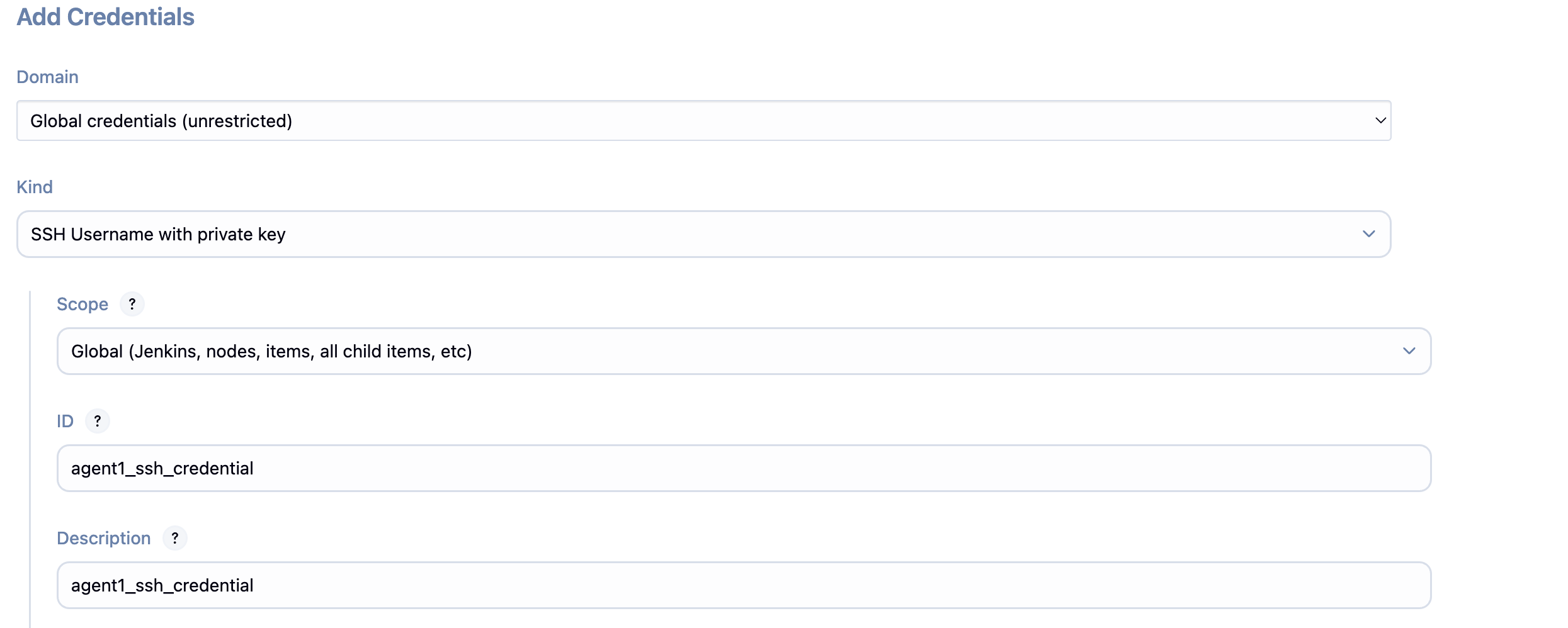
Credentials는 SSH이외에 (username,passwd), 이후 gitlab token 등등 사용된다.
ID는 원하는 대로 설정
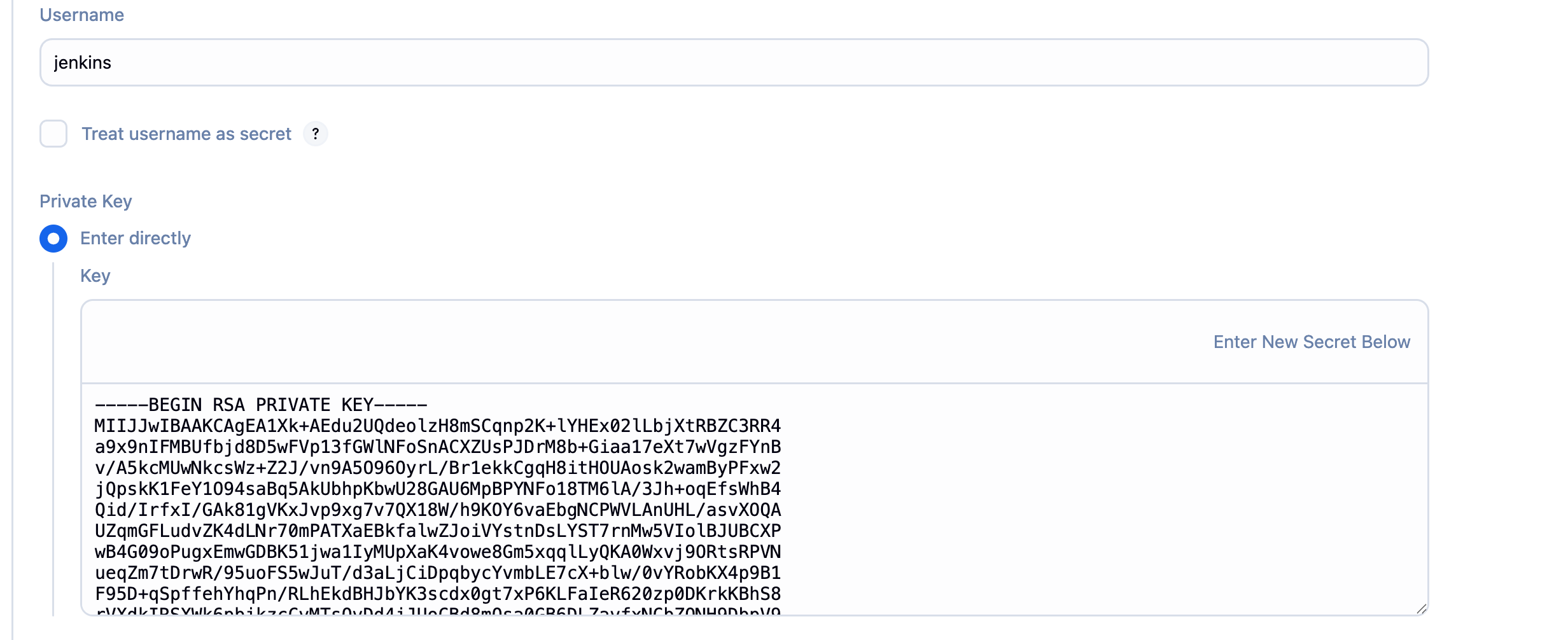
Agent에 접근할 때 사용할 username과 SSH private key를 입력해준다.
나의 경우는 Agnet에서 jenkins user를 만들 예정이기 때문에 jenkins를 사용하였다.
6-1. Launch method 설정
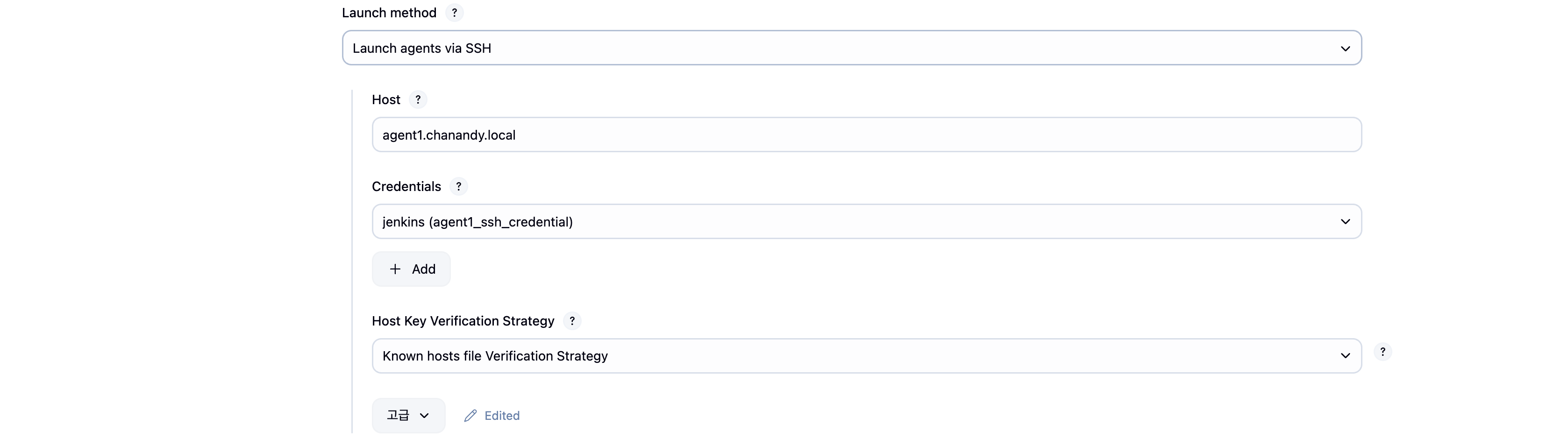
위에서 만든 SSH credietial을 선택한다. Host는 Agent에 접근할 때 필요로 하는 IP주소 또는 Hostname을 설정한다.
나의 경우는 /etc/hosts 파일에도 설정이 되어 있으며 VPC내 Route53 private hosted zone을 활용하여 내부 DNS도 구축되어있기 때문에 FQDN(또는 hostname)을 사용하였다.
아래에는 Key를 검증하는 방식을 고를 수 있는데 난 known hosts를 활용한 검증을 설정하였다.
7. Availability

이 설정은 Agent를 언제 사용 가능한 상태로 둘지를 선택하는 설정이다.
Keep this agent online as much as possible : 항상 (default)
Take this agent online and offline at scheduled times : 정해진 시간에 따라 (비용 절감 효과)
Take this agent online and offline at scheduled times : 빌드가 있을 때만 (비용 절감 효과, Cloud Agent와 연계 유용)
나의 경유는 기본 옵션을 선택하였다.
Controller-Agent Connection
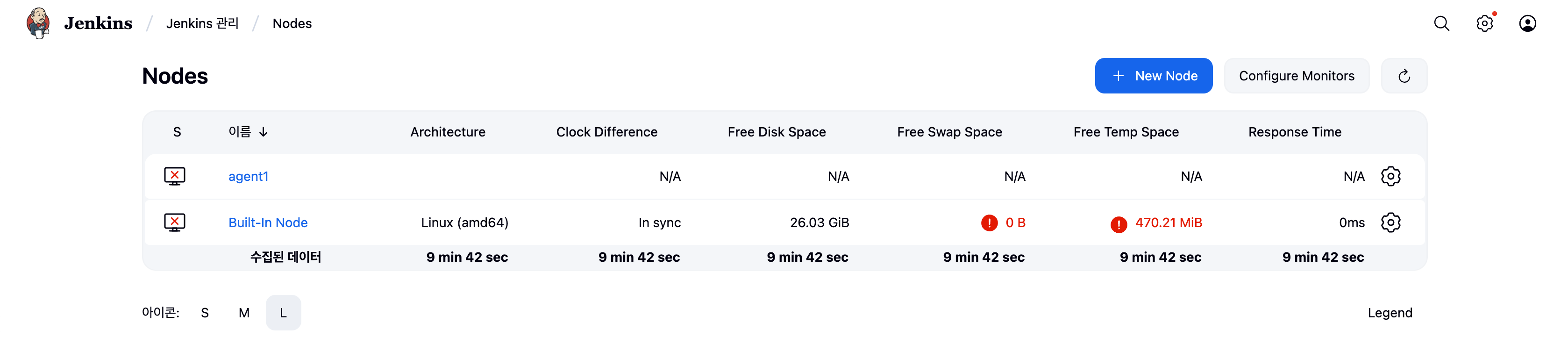
Node에 Controller 자체 Node 이외에 agent1 Node가 추가된 것을 볼 수 있다.
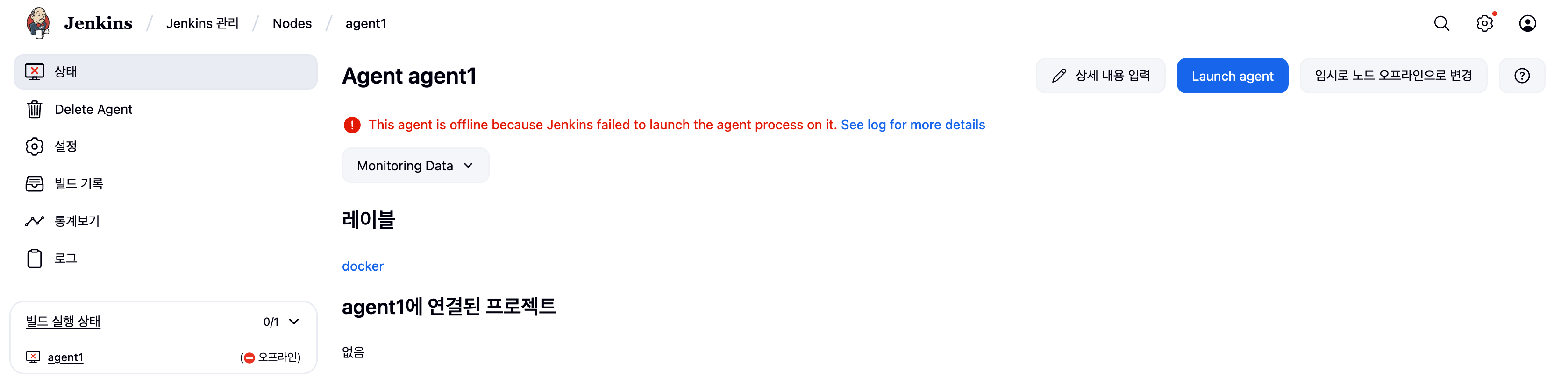
이후 Launch Agent를 통해 Controller와 Agent의 연결을 확인할 수 있다.
Trouble Shooting
SSHLauncher{host='jenkins.chanandy.local', port=22, credentialsId='agent1_ssh_credential', jvmOptions='', javaPath='', prefixStartSlaveCmd='', suffixStartSlaveCmd='', launchTimeoutSeconds=60, maxNumRetries=10, retryWaitTime=15, sshHostKeyVerificationStrategy=hudson.plugins.sshslaves.verifiers.KnownHostsFileKeyVerificationStrategy, tcpNoDelay=true, trackCredentials=true}
[05/22/25 08:06:03] [SSH] Opening SSH connection to jenkins.chanandy.local:22.
/var/lib/jenkins/.ssh/known_hosts [SSH] No Known Hosts file was found at /var/lib/jenkins/.ssh/known_hosts. Please ensure one is created at this path and that Jenkins can read it.
Key exchange was not finished, connection is closed.
SSH Connection failed with IOException: "Key exchange was not finished, connection is closed.", retrying in 15 seconds. There are 10 more retries left.
이전에 Host key verification 전략에서 known_host를 통해 검증하도록 설정하였기 때문에 이를 위한 설정을 한다.

Controller가 Agent에 접근할 때는 Jenkins user 권한으로 접근한다. Jenkins user의 홈디렉토리는 /var/lib/jenkins이기 때문에
이 경로에 위치한 /.ssh/known_hosts에 등록되어 있어야 한다.
# jenkins.chanandy.local : ssh키를 만들 떄 사용한 Hostname
mkdir -p /var/lib/jenkins/.ssh
sudo -u jenkins ssh-keyscan -H agent1.chanandy.local >> /var/lib/jenkins/.ssh/known_hosts
위의 명령을 통해 jenkins user 권한으로 ssh-keyscan을 실행하여 결과값을 등록할 수 있다.

Log를 통해 Agnet와 연동이 성공한 것을 확인할 수 있다.
Trouble Shooting 2

하지만 agent1의 /tmp 의 용량이 threshold로 정한 1GiB보다 작다고 경고를 보내고 있다.
agent서버는 aws EC2 이기 때문에 기본값으로 정해진 듯하며 이를 늘려줄 수 있다.
sudo mount | grep /tmp
# tmpfs on /tmp type tmpfs (rw,nosuid,nodev,seclabel,size=486092k,nr_inodes=1048576)
sudo mount -o remount,size=4G /tmp
/tmp는 임시 저장공간이다. 결과에서 tmpfs에 마운트되어 있는 것을 알 수 있는데, 이는 RAM에 올라가는 파일 시스템이다.
따라서 jenkins에서 빌드 캐시, 임시 파일 등 빠르게 처리할 수 있으며 휘발성이기 때문에 자동으로 정리되는 장점이 있다.
나는 mount 크기를 4G로 늘려줌으로써 오류를 해결하였다.

Trouble Shooting 3
(필수는 아님)
또한 Swap Disk에 대해서도 경고등이 떠있다.
Swap Disk란 RAM이 부족할 때 임시로 디스크 공간을 사용하여 메모리를 확장하는 기능이다.
이를 통해 RAM이 부족할 때 시스템 다운을 방지할 수 있다. 경고문을 없애기 위해 Swap disk를 2GiB로 정하였다.
간단하게 swap 파일을 통해 설정하였다.
sudo fallocate -l 2G /swapfile
sudo chmod 600 /swapfile
sudo mkswap /swapfile
sudo swapon /swapfile
echo '/swapfile none swap sw 0 0' | sudo tee -a /etc/fstab
Trouble Shooting 4

이 경고문은 build-in-node에서 Executors를 0으로 줄이라는 뜻이다. 즉, controller Node를 고립시킴으로써 빌드를 할 때 사용하지 않는 설정을 하는 것이다. 오른쪽 manage를 누르거나 build-in-node의 설정에 들어가서 0으로 바꾼 후 저장하였다.

경고문 없이 Agnet Node에서만 빌드하는 환경 구축.
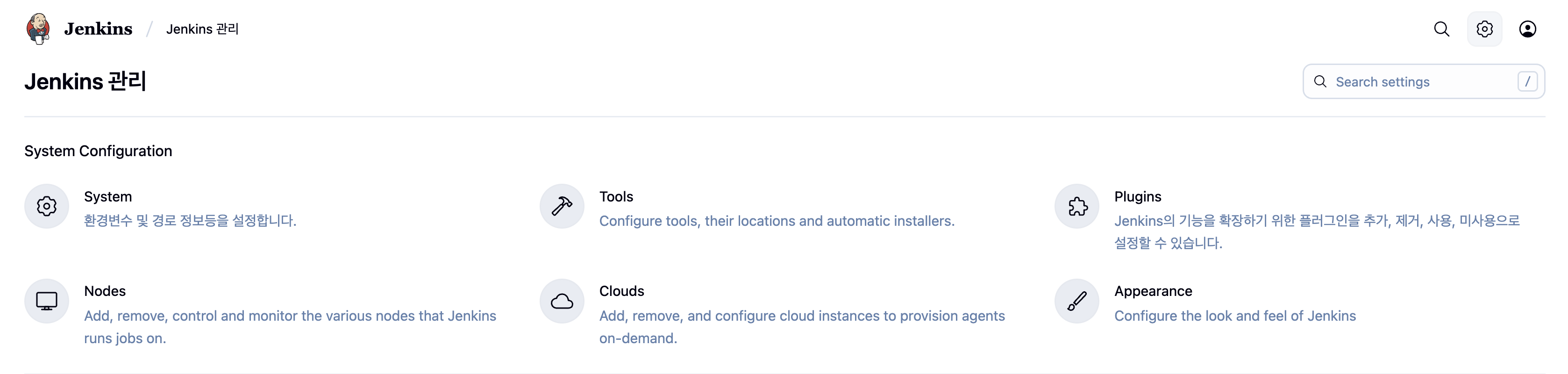
Finish.
'IT > Devops' 카테고리의 다른 글
| [Devops] 06. Gitlab&Jenkins&Harbor Integration (2) (0) | 2025.06.22 |
|---|---|
| [Devops] 05. Gitlab&Jenkins&Harbor Integration (1) (0) | 2025.06.22 |
| [Devops] 04. Harbor Installation (2) | 2025.06.01 |
| [Devops] 02. Jenkins Installation (0) | 2025.05.22 |
| [Devops] 01. Gitlab Installation (2) | 2025.05.19 |